⏱️
Tasks with an estimate
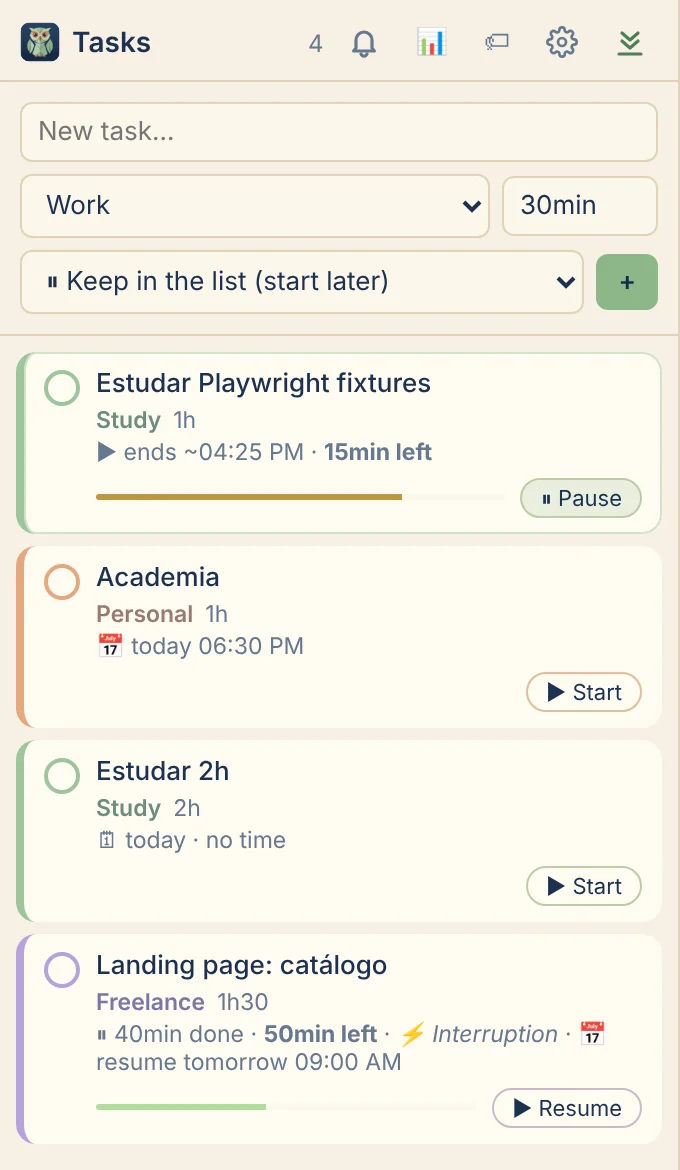
Type the task and how long you think it takes (30, 45min, 1h30), pick a color-coded category, and start now, plan it for a day or schedule a time.
Task widget for Windows
Pick a task, estimate how long it should take and press play. A thin bar keeps you focused until it's done, and the dashboard shows you, in numbers, how you really spent your time.
Free · Windows 10 and 11 · How to installThe bar turns from green to red as time runs out, and blinks when you go over.
The idea
My Owl Planner isn't here to watch over you. It helps you stay focused on one task at a time and then shows you, with your own numbers, how you really use your time: how long things actually take, what gets in your way and when you work best. Nobody else sees that data. The conclusions are yours.
Features
The widget lives on the side of the screen and collapses into a thin bar when you don't need it.
Type the task and how long you think it takes (30, 45min, 1h30), pick a color-coded category, and start now, plan it for a day or schedule a time.
Only one task runs at a time. Pausing asks why. Finishing asks what got in the way, so the numbers mean something.
Top, bottom or either side, in three thicknesses. It sits above every window and fixes itself when a game goes full screen.

Periodic reminders, time's up, time to start, task done. They come with an optional hoot and rotating messages, and you can write your own.
The taskbar button fills up as the task runs, turns yellow on pause and red in overtime. One click opens or collapses the panel.
An optional emoji when you start and finish. Over time, you see which kind of work leaves you better off.
How it works
Add the task with your guess, like 45min or 1h30.
Collapse the panel and get to work. The bar and the owl keep you on track.
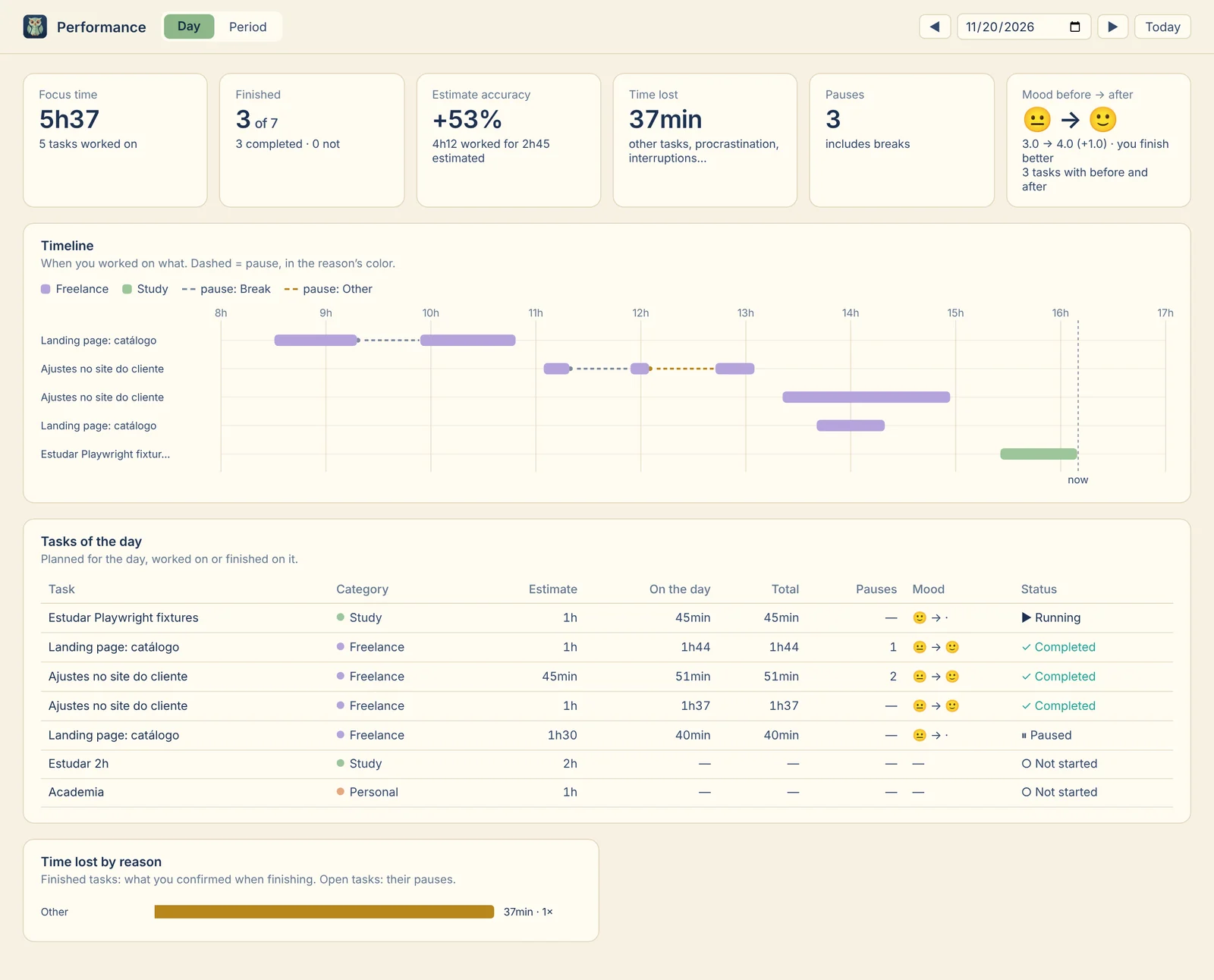
At the end of the day or month, the dashboard shows how close your estimates were and where the time went.
Dashboard
Pick a day or a week, month, year or custom range, and compare it with the previous one.
Privacy
My Owl Planner works fully offline. There is no sign-up, no tracking and no server holding your data.
FAQ
Need more detail? The full guide explains the installation step by step and every feature of the app.
Yes. My Owl Planner Lite is free to download and use.
Windows 10 and 11, 64-bit. ARM laptops (like Snapdragon) run it through Windows' built-in emulation. Windows 7, 8 and 8.1 are not supported.
That warning shows up for apps without a paid code-signing certificate. Click "More info" and then "Run anyway". The full source code is on GitHub if you want to check it. See it step by step.
The installer is recommended: it adds Start menu and desktop shortcuts and can be uninstalled like any app. The portable .exe runs without installing, which is handy for trying it out or using it from a USB drive. Both can update themselves.
Everything is saved in %APPDATA%\my-owl-planner-lite on your PC. Uninstalling the app does not delete it, so a reinstall picks up where you left off.
Not right now. My Owl Planner Lite is made for Windows.
Yes. Right-click the owl in the tray and open demo mode. It comes with about two years of simulated data, kept separate from yours.

Download it, add three tasks and press play. That's all it takes to start.
Download for Windows Free · Windows 10 and 11 · Read the guideFeedback
Tell me. Every report helps make the owl better.
Meet the maker

Almost 10 years working in tech, 5 of them in QA. My Owl Planner started as a tool to solve a problem of my own and grew into something that can help a lot of people.